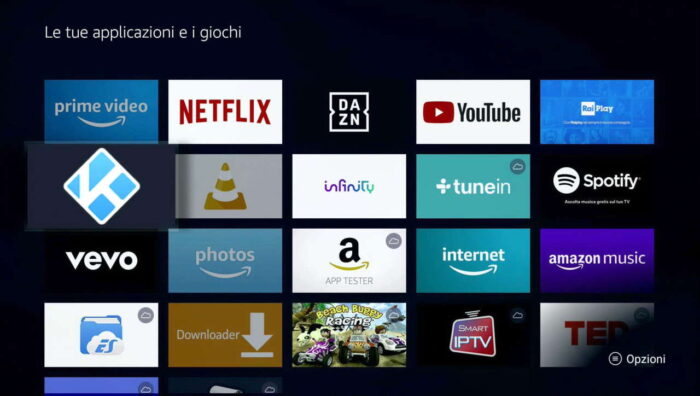
Google’s Android operating system is present on over 2.5 billion devices worldwide, from smartphones to tablets and automotive infotainment systems. In recent years, it has also become available in media boxes and HDMI dongles to connect to TVs and smart TVs. Google’s choice has revolutionized the market by bringing Android apps and TV services (IPTV, VOD, OTT) to the TV screen for an even richer and more complete enjoyment.
The Android Boxes, in the form of boxes or dongles, have effectively replaced older media players, expanding their functionality and ensuring flexibility and versatility previously unknown. The Android smart TVs (produced by Philips, Sharp, Sony, or TCL, for example) have been joined by those based on other operating systems (such as Tizen for Samsung or WebOS for LG) by collecting great success for the undiminished offering of applications and the possibility of integration with other systems and devices also thanks to Google’s voice assistant.
Over 4.5 million apps on Google Play alone
The official Google Play store boasts over 4.5 million apps, but hundreds of thousands can be downloaded using alternative methods, on the web or in unofficial stores such as Aptoid. Not all apps can obviously be installed on an Android box or Smart TV, either due to the lack of essential hardware components such as GPS, accelerometer, or touchscreen (GPS browsers, certain types of games, etc.), or due to incompatibility with the version and type of Android (“standard” for smartphones, tablets, and some boxes or “Android TV” for set-top boxes and smart TVs) installed on the device.
Most boxes and almost all smart TVs with the Android operating system natively support Google Play to simplify the app installation process and ensure that only those truly supported are downloaded. Some models, however, are not certified by Google and therefore cannot access the store, at least officially. In this case, you need to find workarounds such as Aptoide or websites that allow you to download the same apps as Google Play but also those excluded by Big G for various reasons (security, lack of commercial agreements, market strategies, etc.).
Aptoid, APK Mirror, and APK Pure: Alternatives to Google Play
Aptoide is the Portuguese app store that has recently gained prominence due to Huawei’s interest following the ban imposed by the United States and the subsequent abandonment of the Google Play Store. On Aptoide, you can find hundreds of thousands of apps without needing accounts (required for Google Play), in all their current and possible previous versions (for Android and Android TV). However, security checks leave much to be desired, and it is not uncommon to encounter “malicious” apps containing viruses and Trojans that cause slowdowns and theft of personal data.
Aptoide is accessible via the web browser (https://it.aptoide.com/), apps for smartphones and tablets (https://m.aptoide.com/installer), for boxes and smart TVs (https://m.aptoide.com/installer-aptoide-tv?lang=it), and also in a “lite” version for less powerful devices (https://m.aptoide.com/installer-aptoide-lite). The Aptoide website and all others that host hundreds of thousands of apps (like APK Mirror and APK Pure) allow you to directly download the file that contains the app (.apk — Android Package) which must then be copied to a USB stick or micro-SD card to be connected to the box or Smart TV for later installation. Alternatively, it can be saved on a PC or NAS and shared over the network with your Android device.
.apk files can also be found on peer-to-peer sharing networks such as Emule and Torrent. However, very often, these are “cracked,” “modded,” or even “infected” versions that can cause serious problems (not only on the Android box but also on the PC) and lead to the risk of piracy complaints.
Downloading and installing apps
To assist less experienced users who have purchased a box, an Android Smart TV, or a Fire TV Stick (all versions) and want to be able to enjoy their potential, we have prepared some tutorials that easily explain how to download and install apps based on the type of device, whether or not Google Play, Aptoide, a USB/micro-SD location, etc.
Android Stick & Smart TV
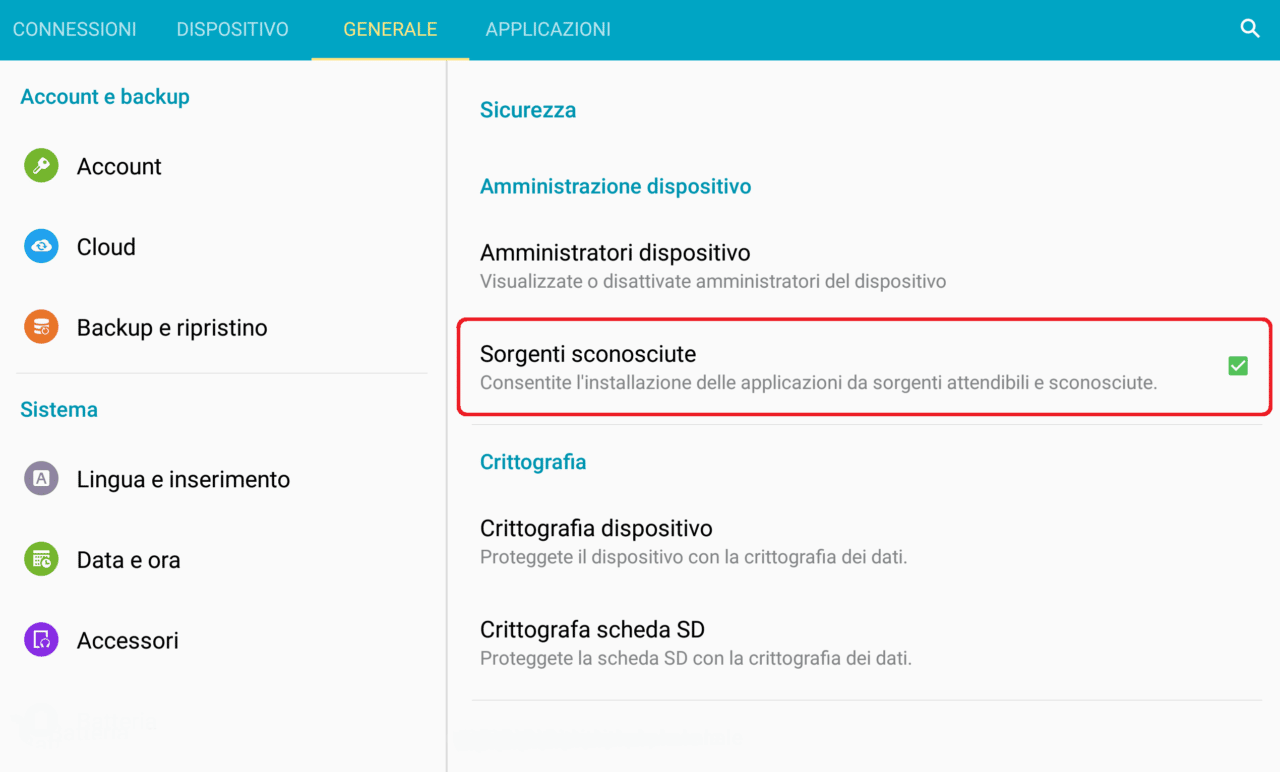
Before delving into the procedure, a clarification is mandatory. To install apps outside of Google Play, you must enable the “Install from unknown sources” or “Unknown sources” option in the “Security” section of the settings menu, or in “Apps and notifications” > “Advanced” > “Special access.”
Box or Smart TV with Google Play
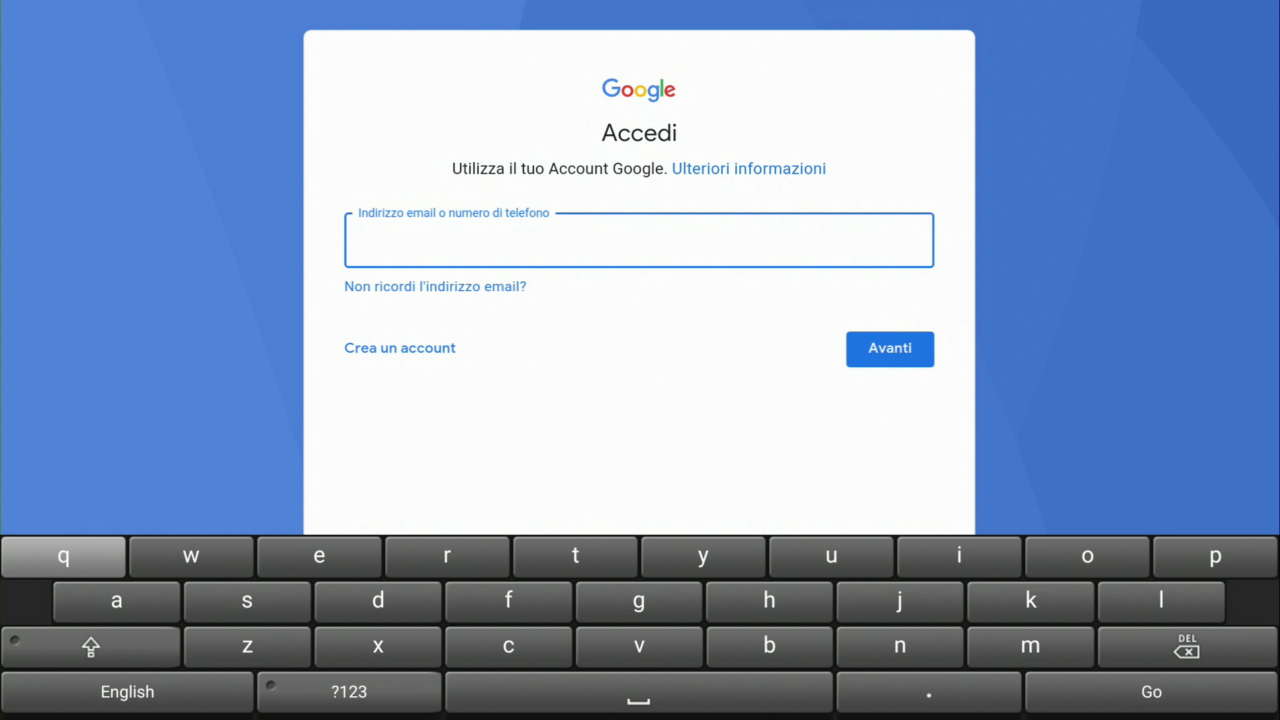
If Google Play is already pre-installed on your device, the only requirement to install apps is a Google account. You can use the one already active on your smartphone or tablet, create a new one during the box installation when you first log into Google Play, or from the site https://accounts.google.com/signup.
- Click on the Google Play app;
- Enter your existing Google account credentials (email address and password) or create a new one;
- Click on the Apps section, then on “My apps” to install the apps already present (as they are installed on smartphones and tablets) or use the search engine, browse categories (entertainment, music and video, games, etc.), rankings (featured apps, best-sellers, etc.), or “new releases” to find the desired app;
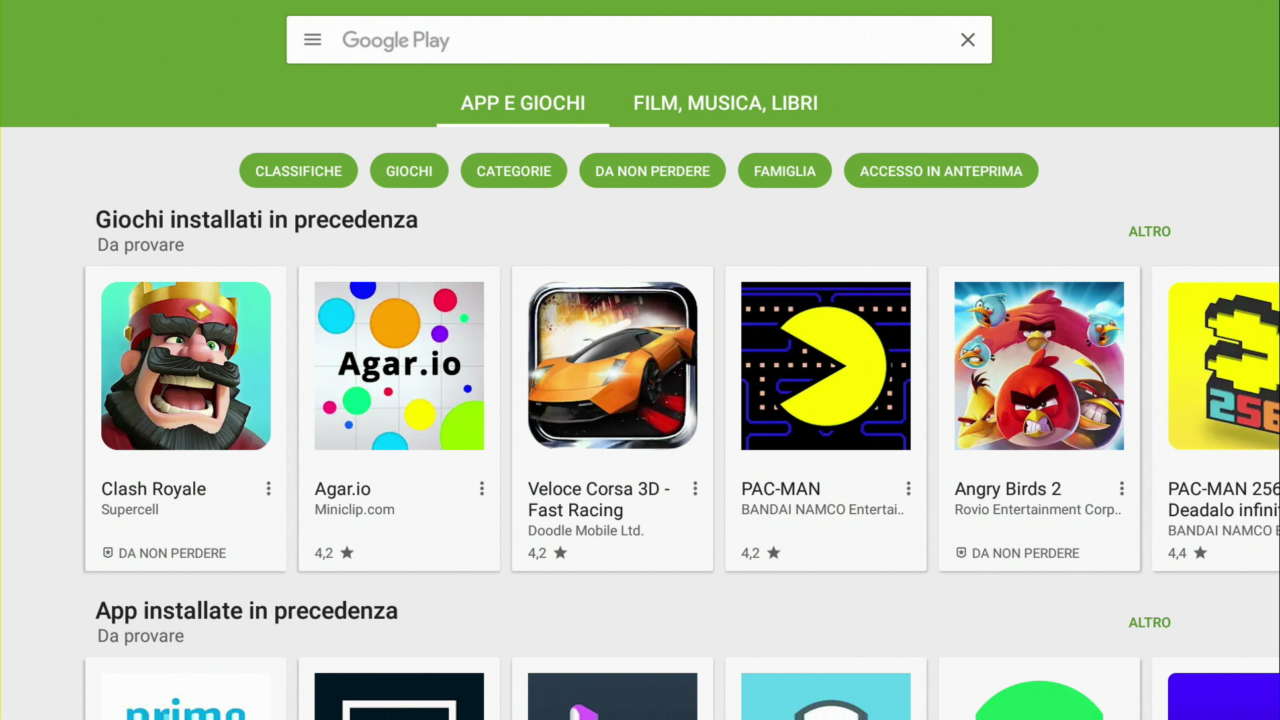
- Click on “Install” (free apps) or “Buy” (paid app), wait for the download and installation on your device.
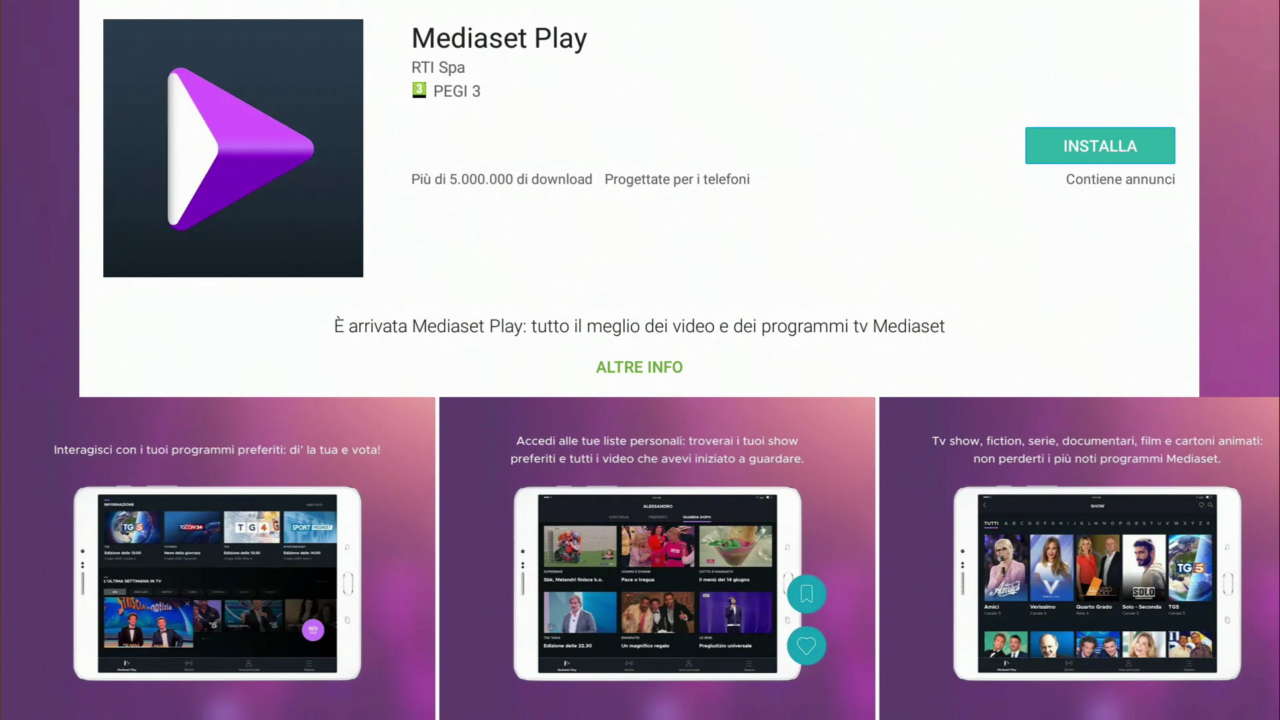
- The installed app will appear on the general list screen.
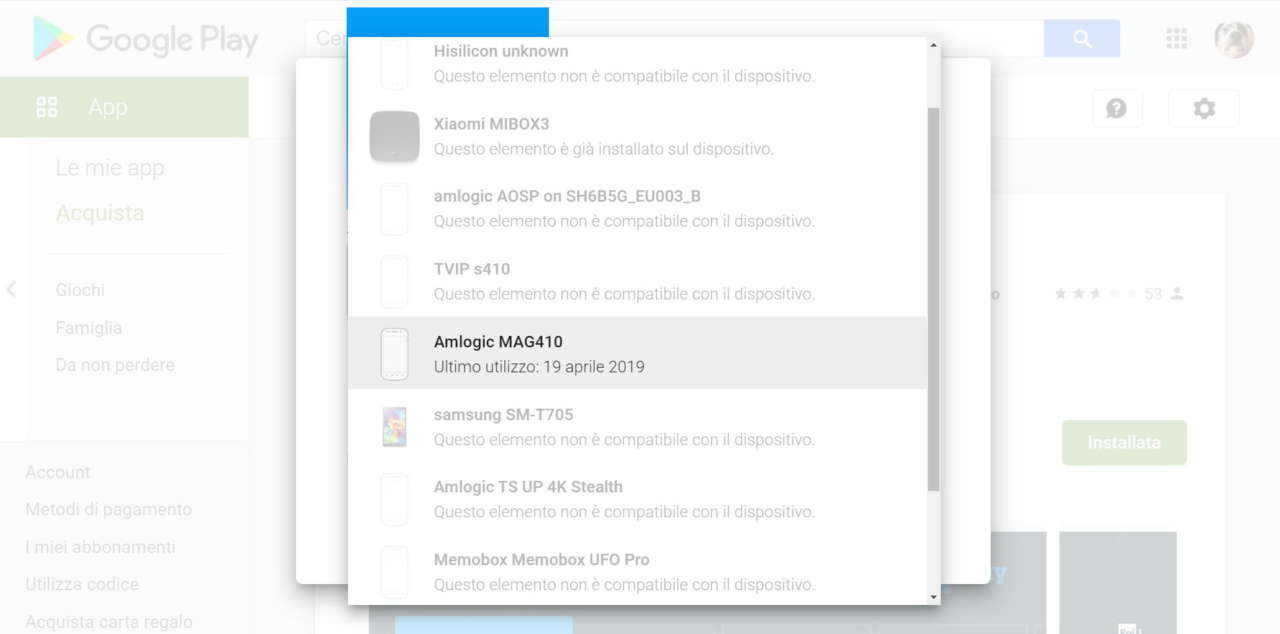
Downloading and installing apps from Google Play can also be done remotely via https://play.google.com. If your Google account is associated with multiple registered devices (for example, smartphone 1, smartphone 2, and Android box), you must choose the device on which you want to install the app. If the device is recognized as incompatible with this app (or its specific version), it will appear grayed out and will not be selectable.
In this case, it is necessary to follow procedures B. or C.
Box or Smart TV without pre-installed Google Play but compatible
Some Android boxes without Google Play are actually perfectly compatible. In such cases, the absence is often related to the timing and cost of Google certifications, which some manufacturers prefer not to bear.
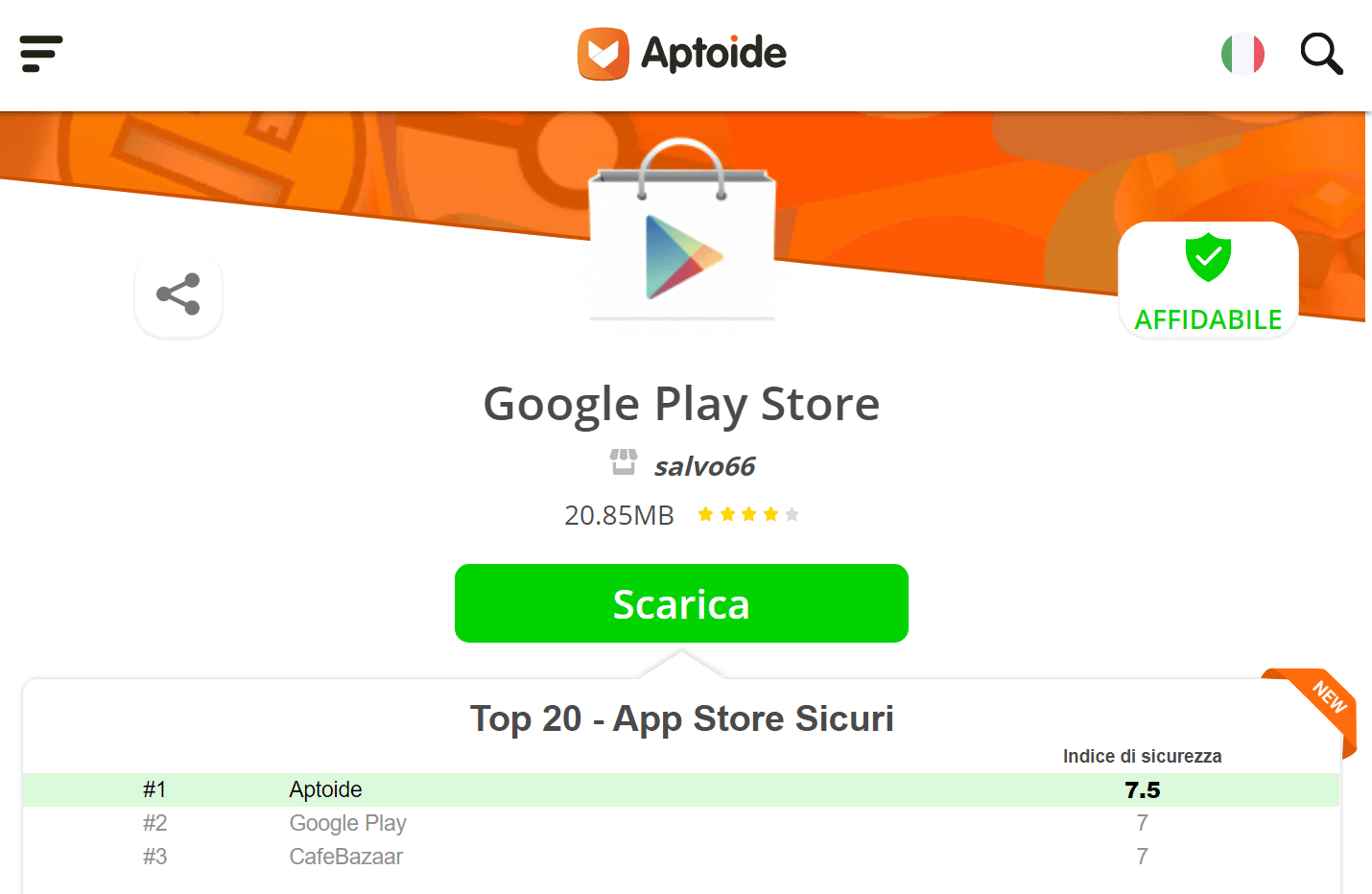
The Google Play app can be downloaded from Aptoide or other websites (see procedures A. B. and C.).
Box or Smart TV with Aptoide
Many devices without Google Play have the alternative store Aptoide pre-installed in “standard” or Android TV (Aptoide TV) version from which you can download the apps you want.
- Click on the Aptoide or Aptoide TV app;
- Allow any access requests to the device (e.g., media and files) or updates;
- Select “Discover” or “Categories” from the left menu;
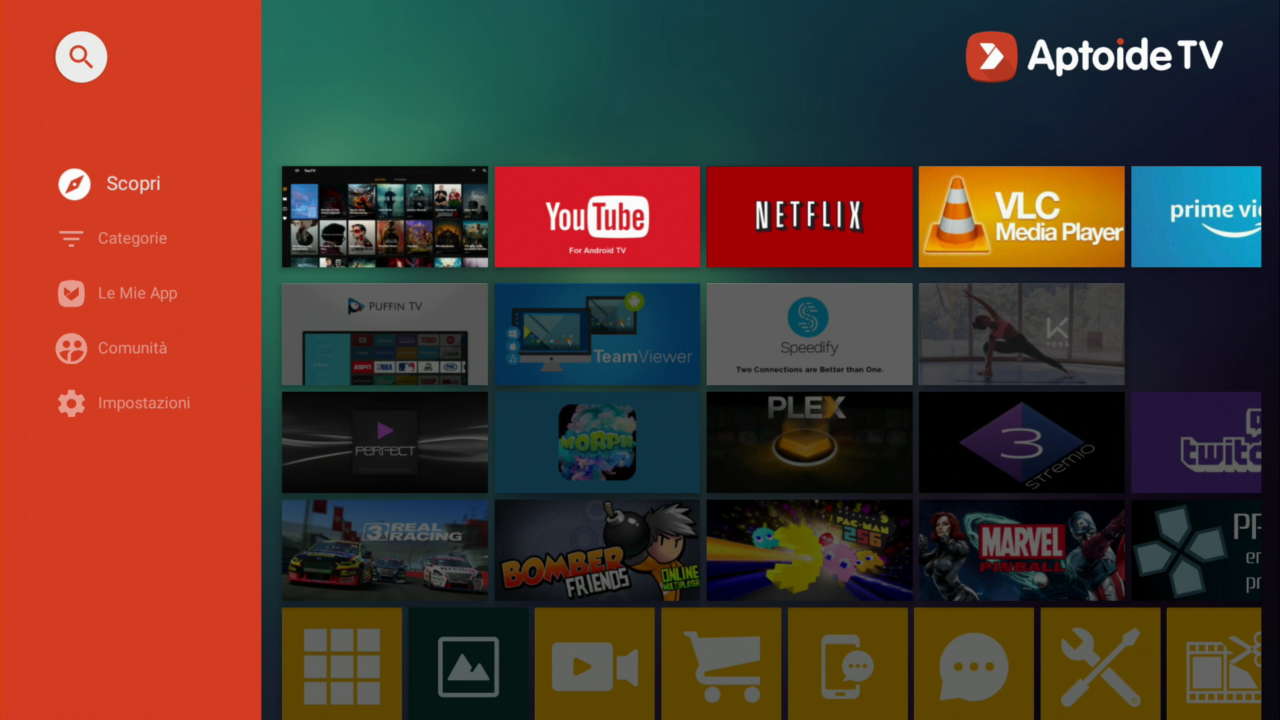
- You can also scroll through the app icons that appear in the main window;
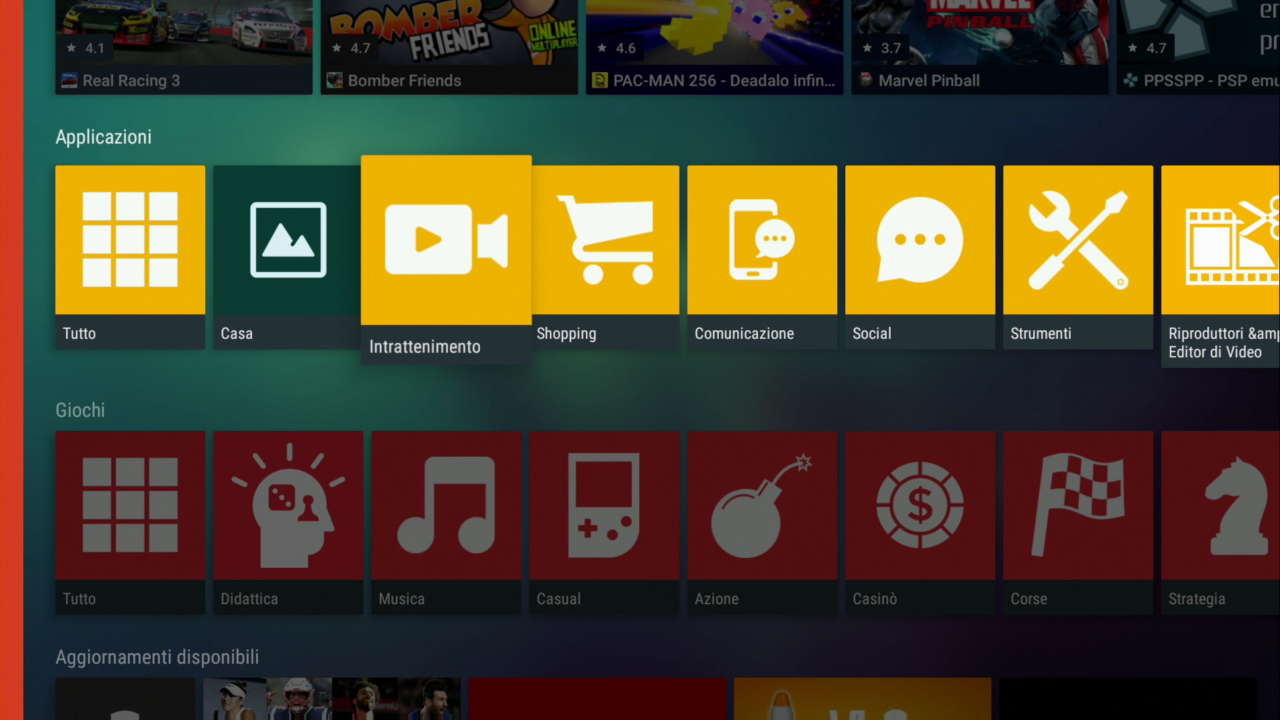
- Select the desired app and click “Install”;
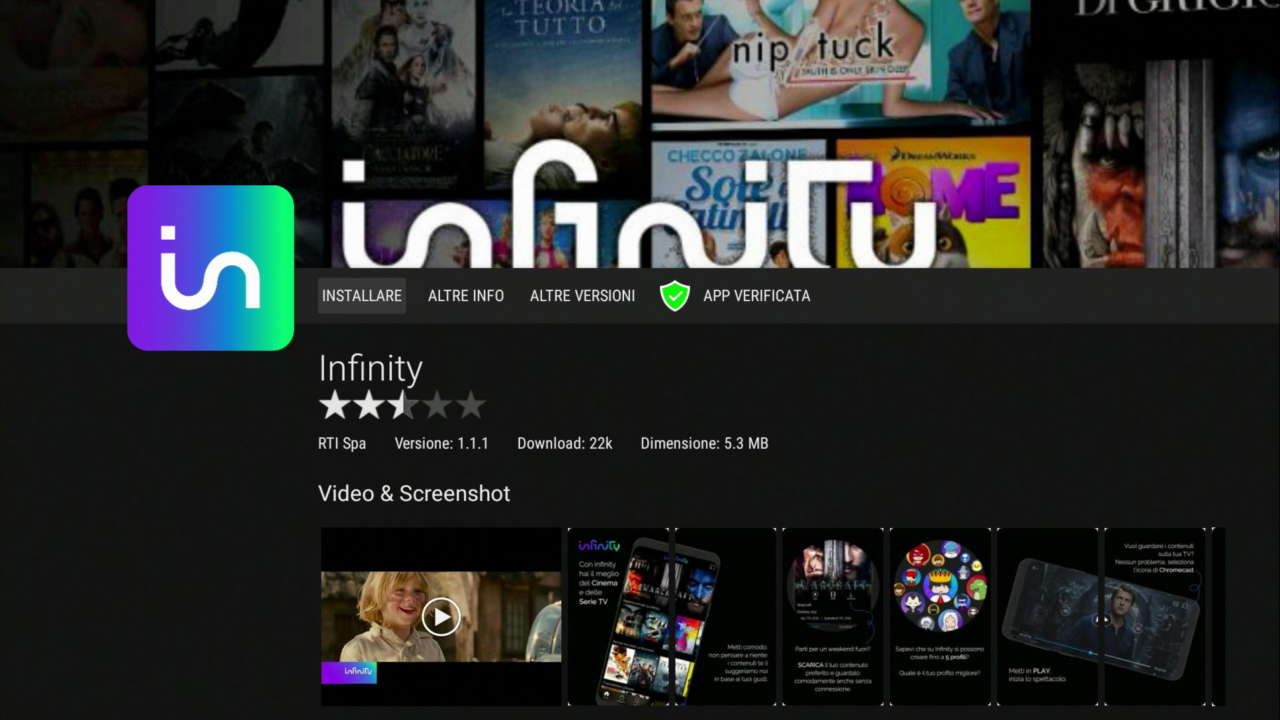
- Wait for the download and installation;
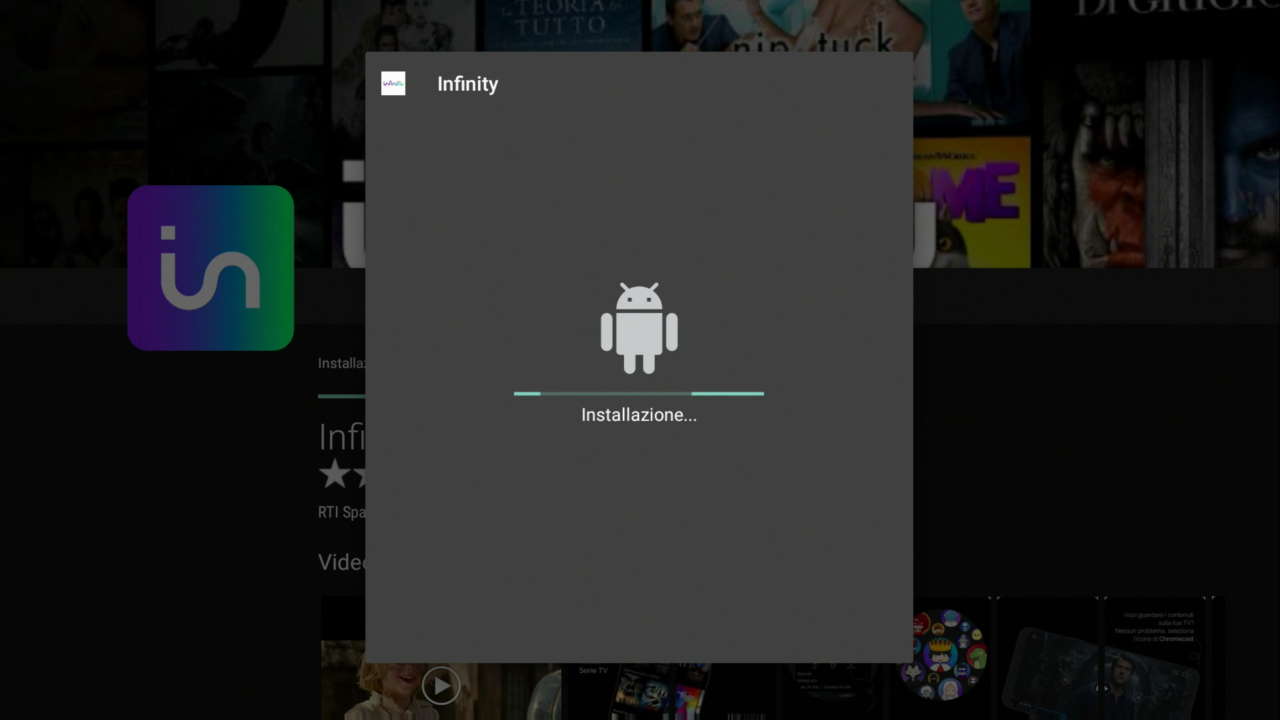
- The installed app will appear on the general list screen.
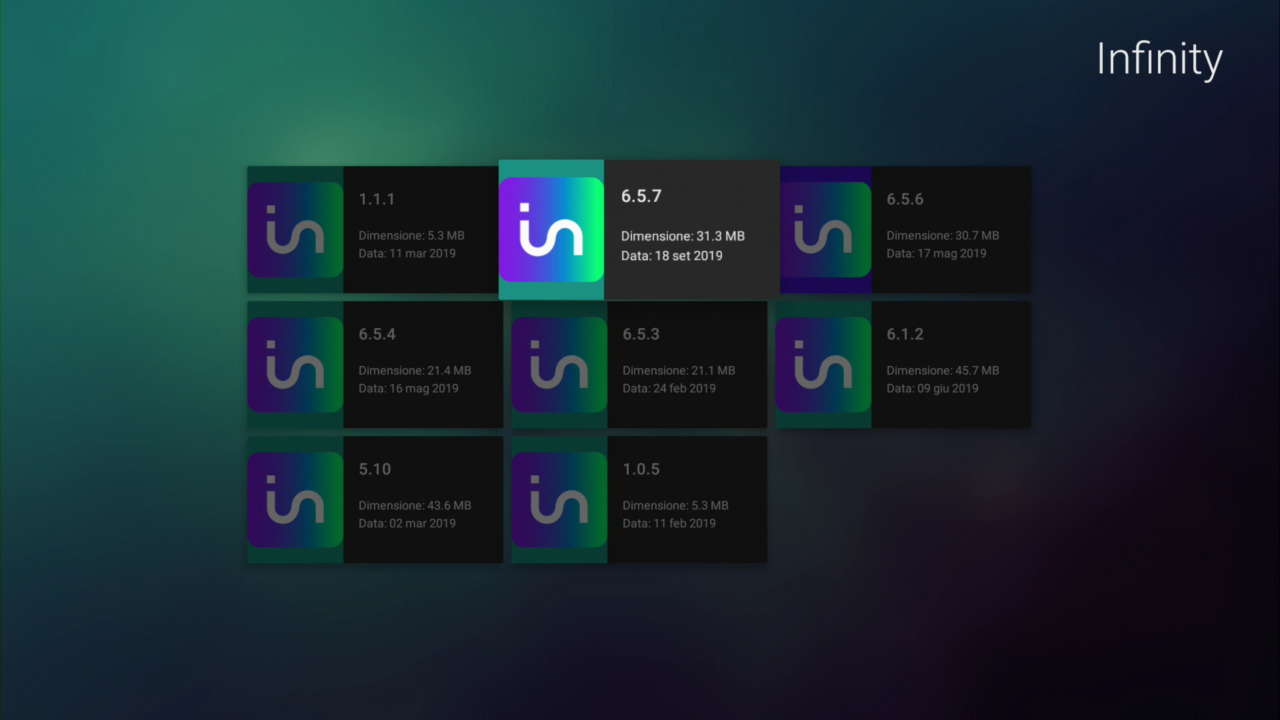
- If the installed version does not work correctly, try other versions (step 3. — “Other versions” option).
Box or Smart TV without Google Play or Aptoide
If your device does not have an app store, you can install apps via Aptoide (app or web) or directly from websites that provide .apk files.
- Aptoide Apps
- Open the device’s browser and type in the address bar “https://m.aptoide.com/installer” or “https://m.aptoide.com/installer-aptoide-tv?lang=it” (Android TV);
- Click on “Install Aptoide,” “Install for free now,” or “Install Aptoide TV”;
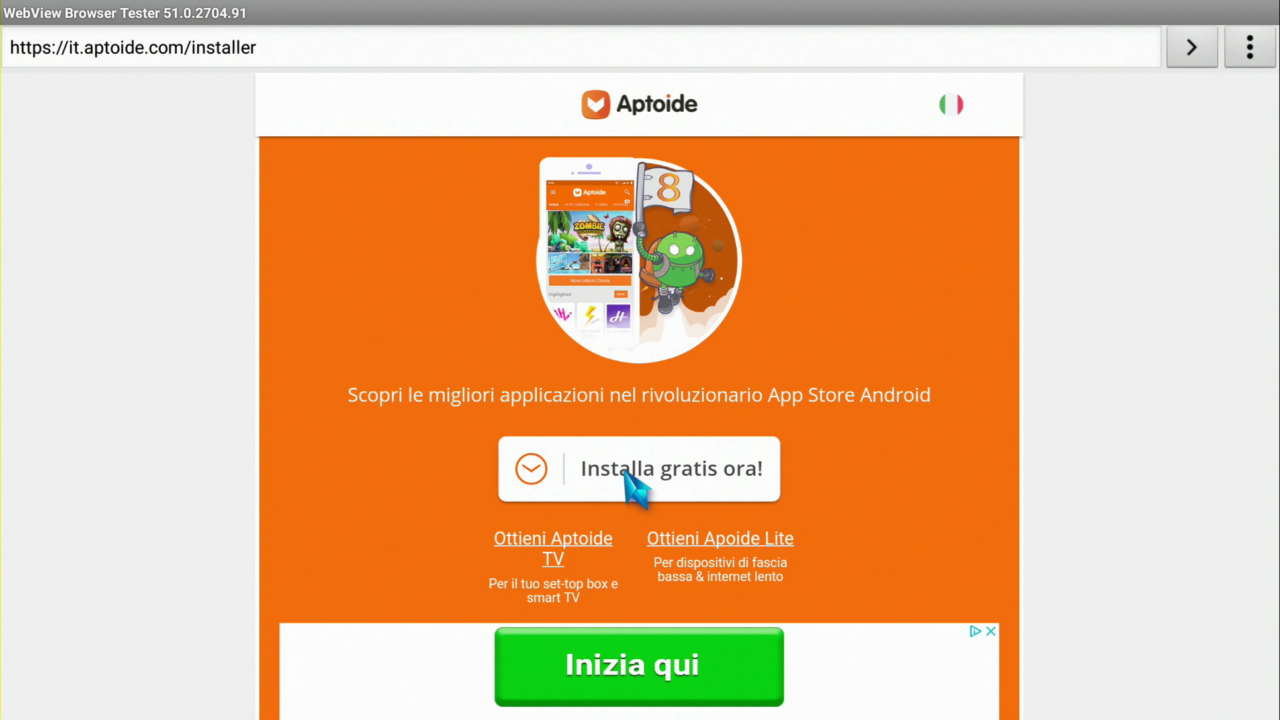
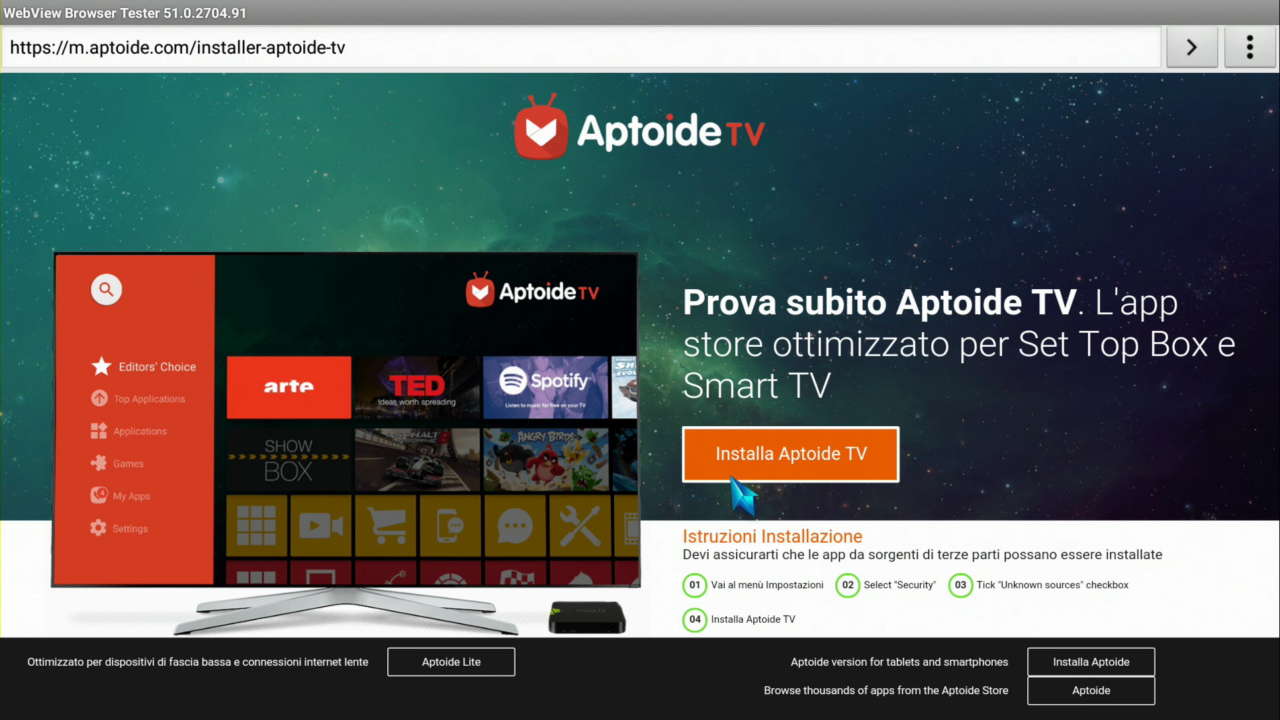
- Confirm the download of the .apk file, open the file (if necessary), and click “Install”;
- At the end, click “Open” to launch the Aptoide/Aptoide TV app;
- Select “Discover” — “Categories” from the left menu or scroll through the applications that appear in the main window;
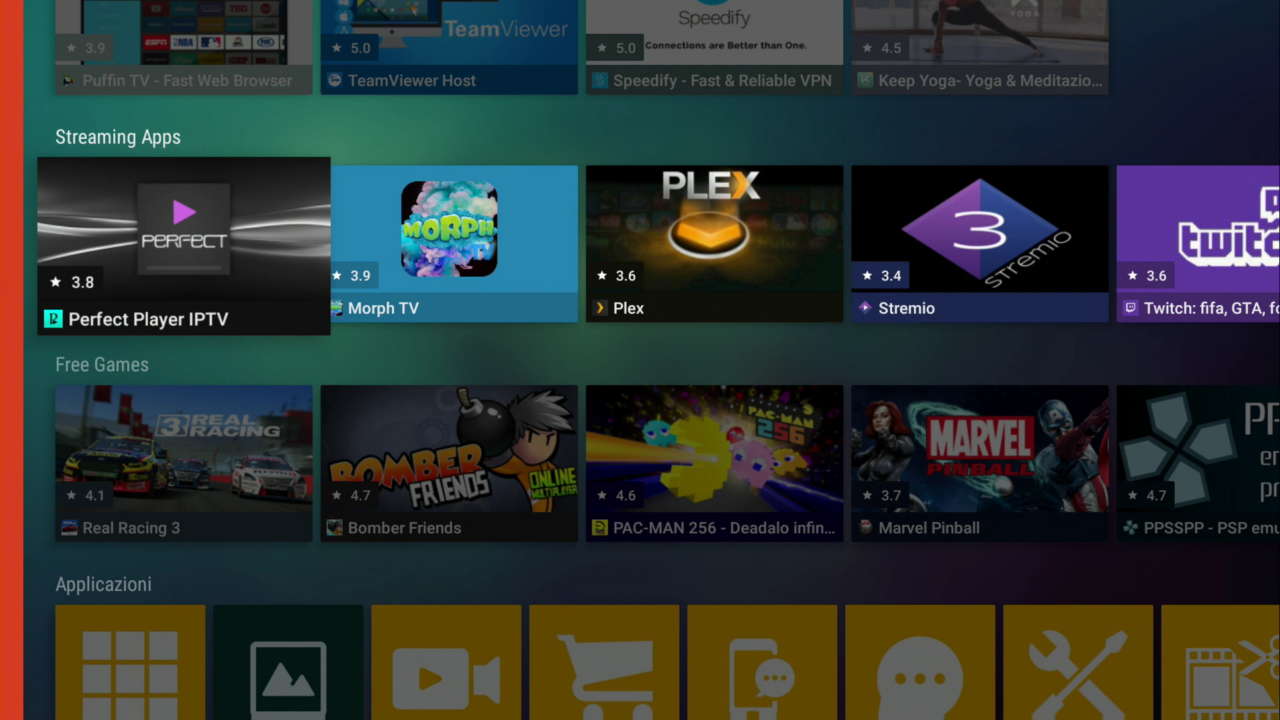
- Select the category from the left menu (Top or Recommended Apps, Apps, Games, etc.) or scroll through the icons organized by genre, type, and proof elements;
- Select the desired app and click “Install”;
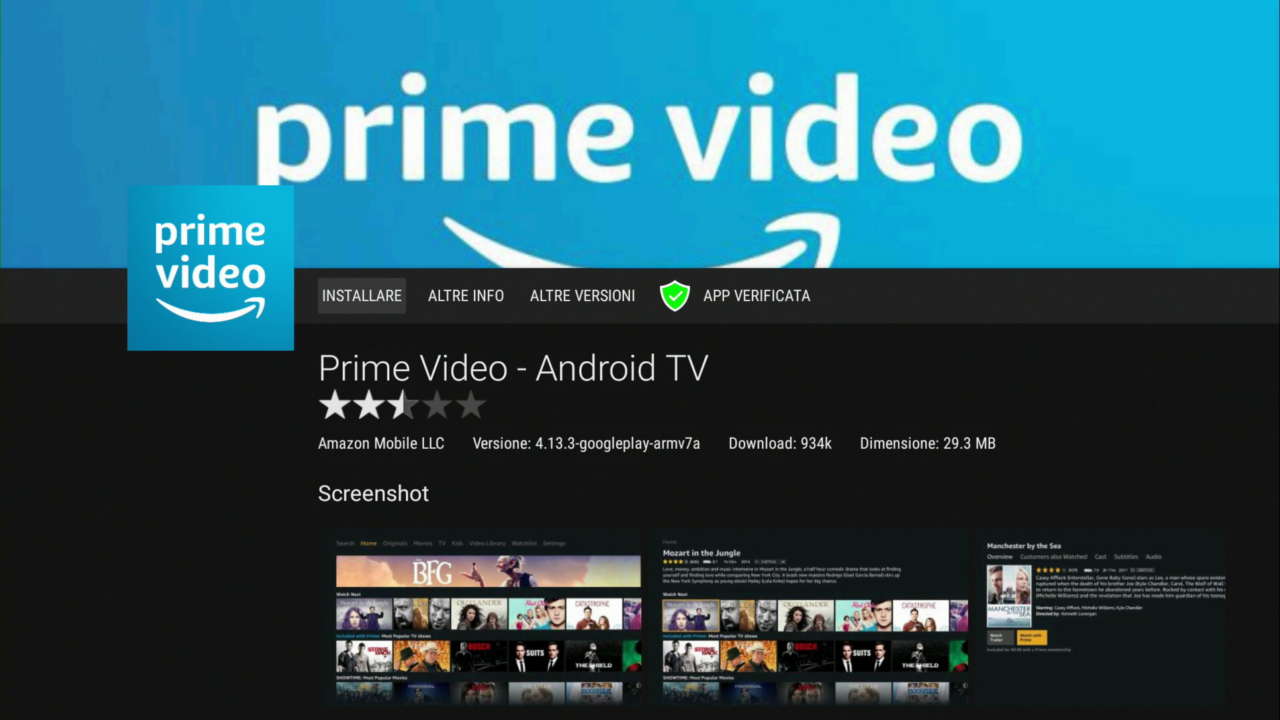
- Wait for the download and installation;
- The installed app will be displayed in the general list.
- If the installed version does not work correctly, try installing other versions (point 6. — “Other versions” option).
- Websites
- Open your device or PC browser and type in the address bar “https://www.apkmirror.com” (APK Mirror website), “https://apkpure.com/it” (APK Pure), or “https://it.aptoide.com” (Aptoide website);
- Search for the desired app via the search engine, by gender, or category;
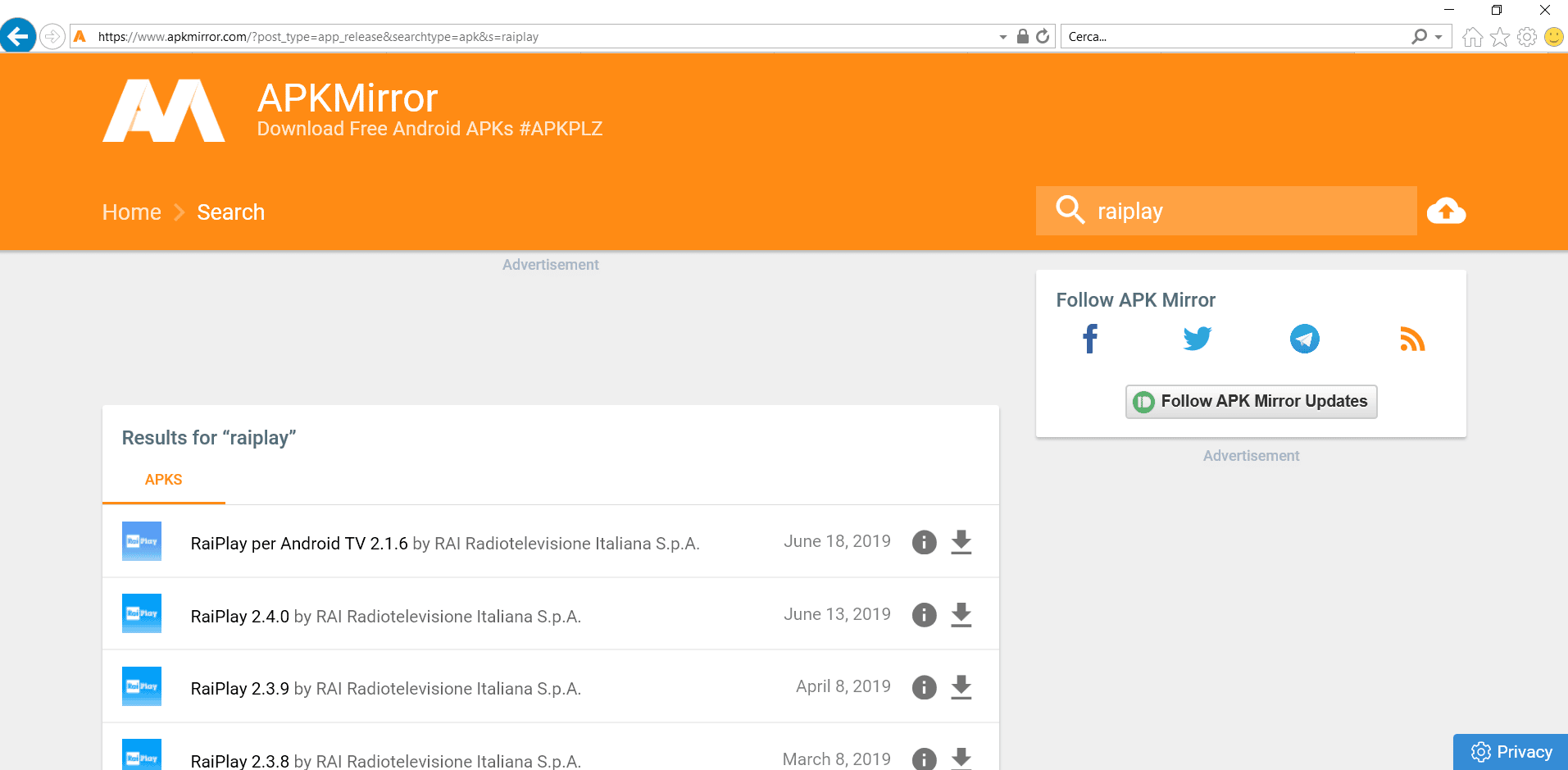
- Click on the latest available version (if necessary), then “Download APK” or “Download”;
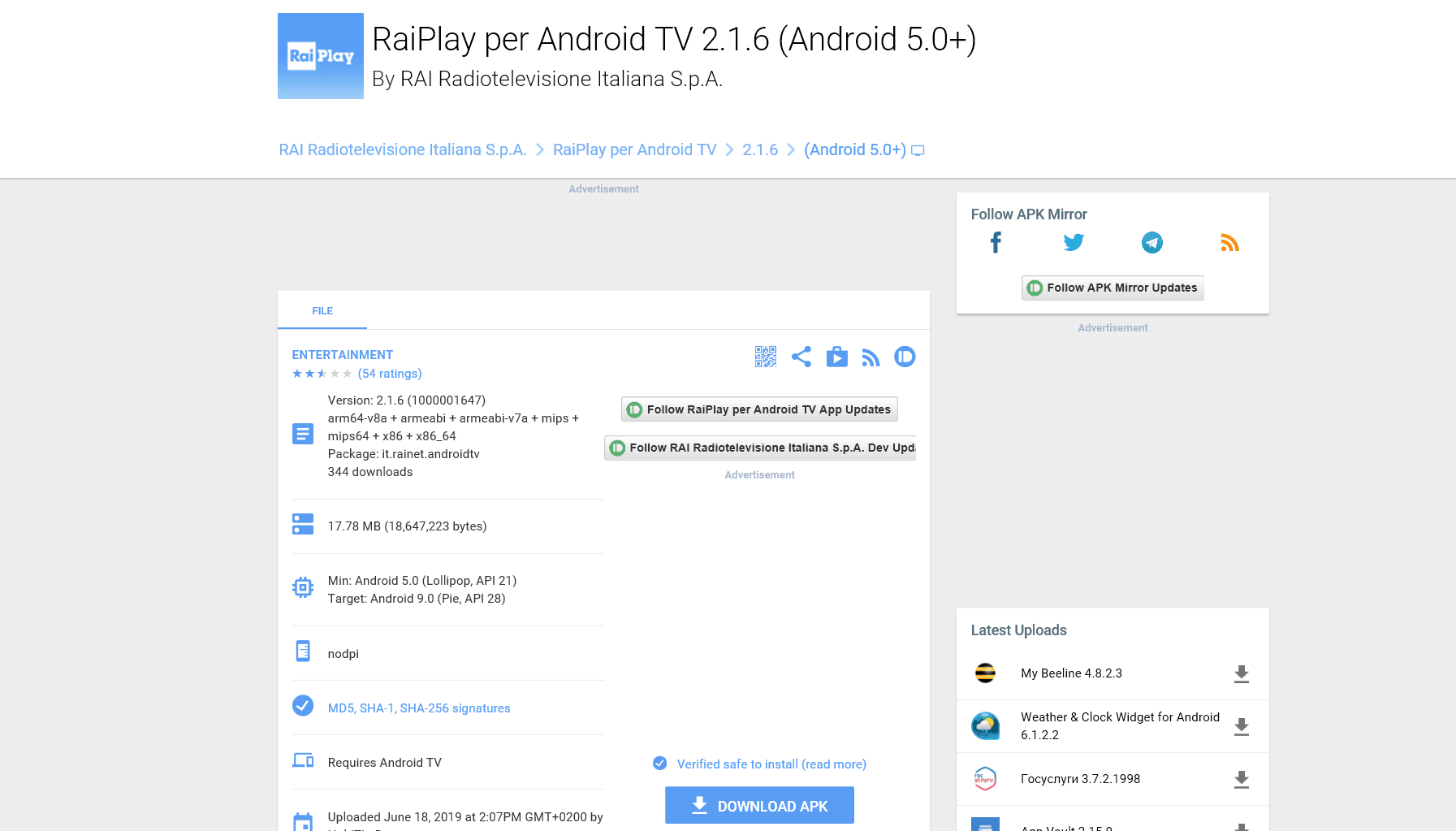
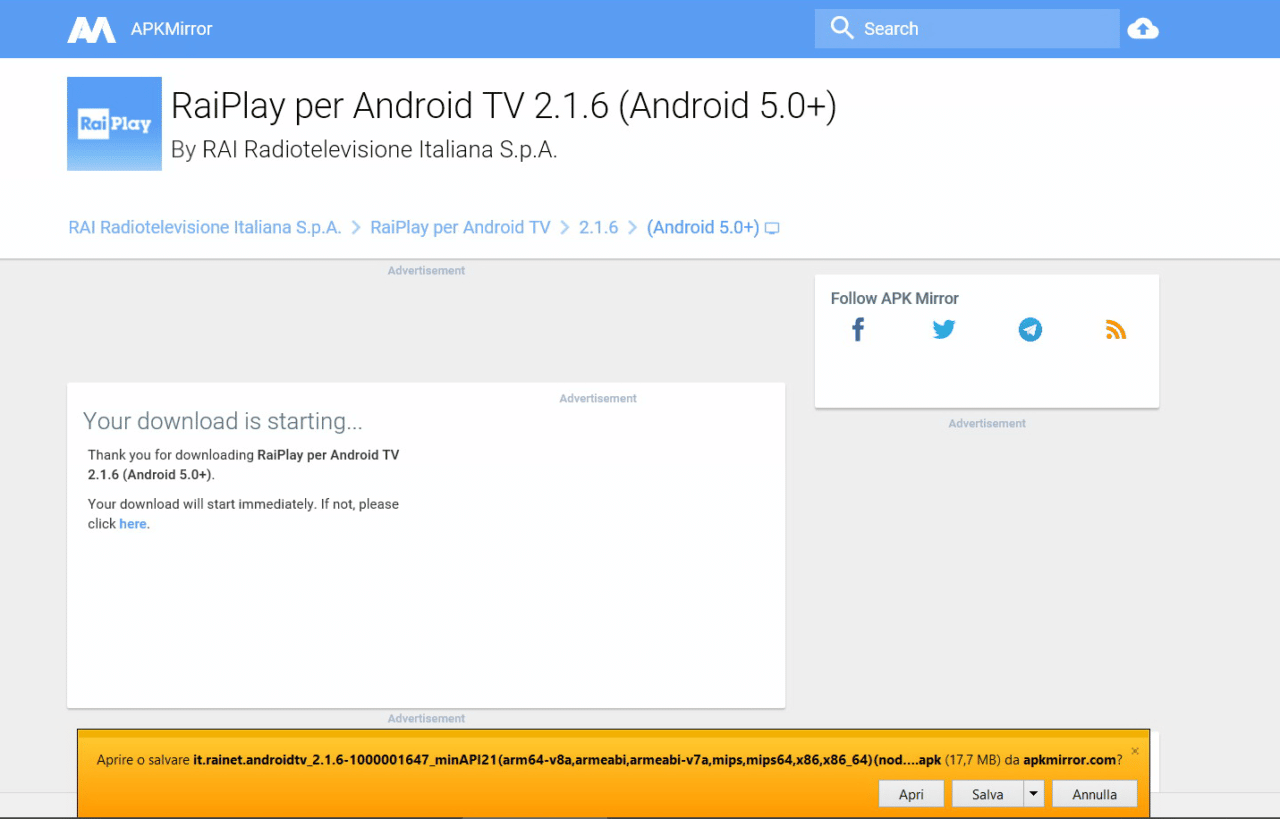
- If the download was performed on the device, follow the “Aptoide App” procedure from step 3.
- If the download was performed by PC instead, save the .apk file on the desktop;
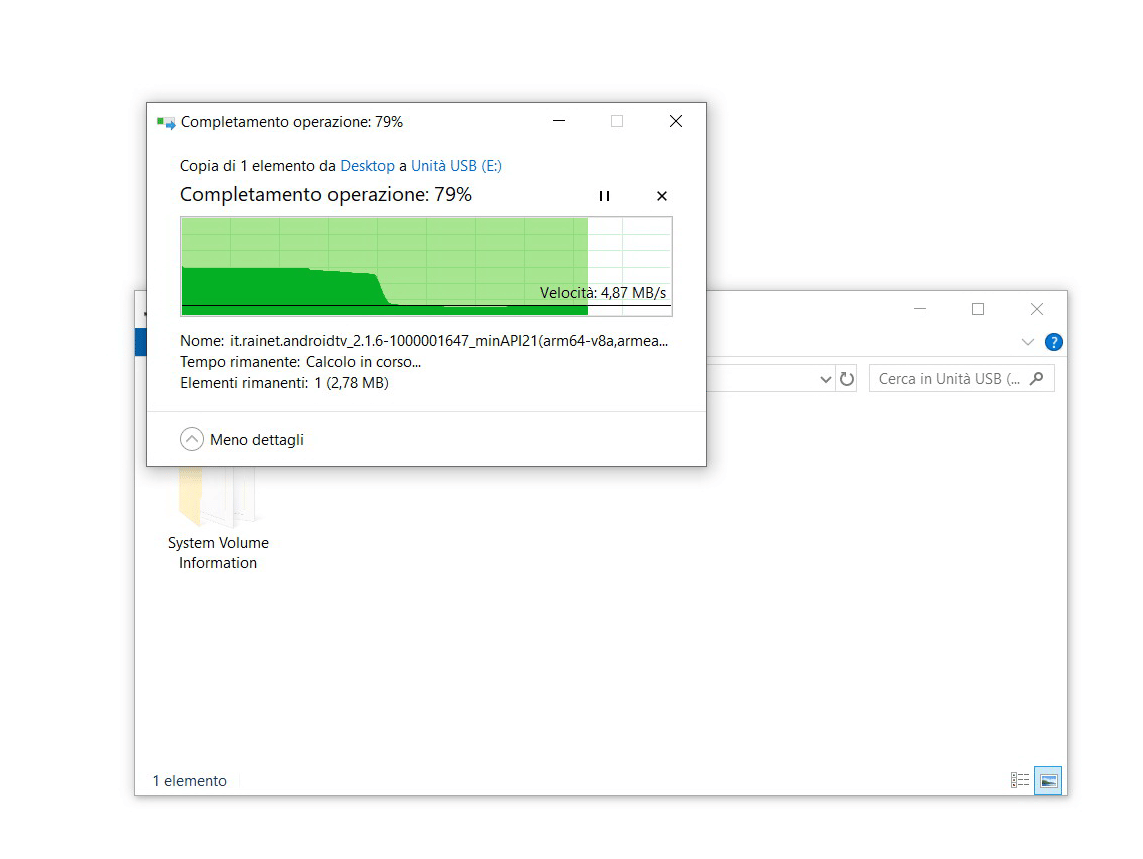
- Take a USB stick or micro-SD card, format it to FAT32 or NTFS, and copy the newly downloaded .apk file inside;
- Connect the USB stick or micro-SD to the Android box or smart TV;
- Launch an app that allows you to browse your device’s memory (e.g., Archive, File Explorer, File Manager, ES File Manager, etc.) and select the USB or micro-SD drive;
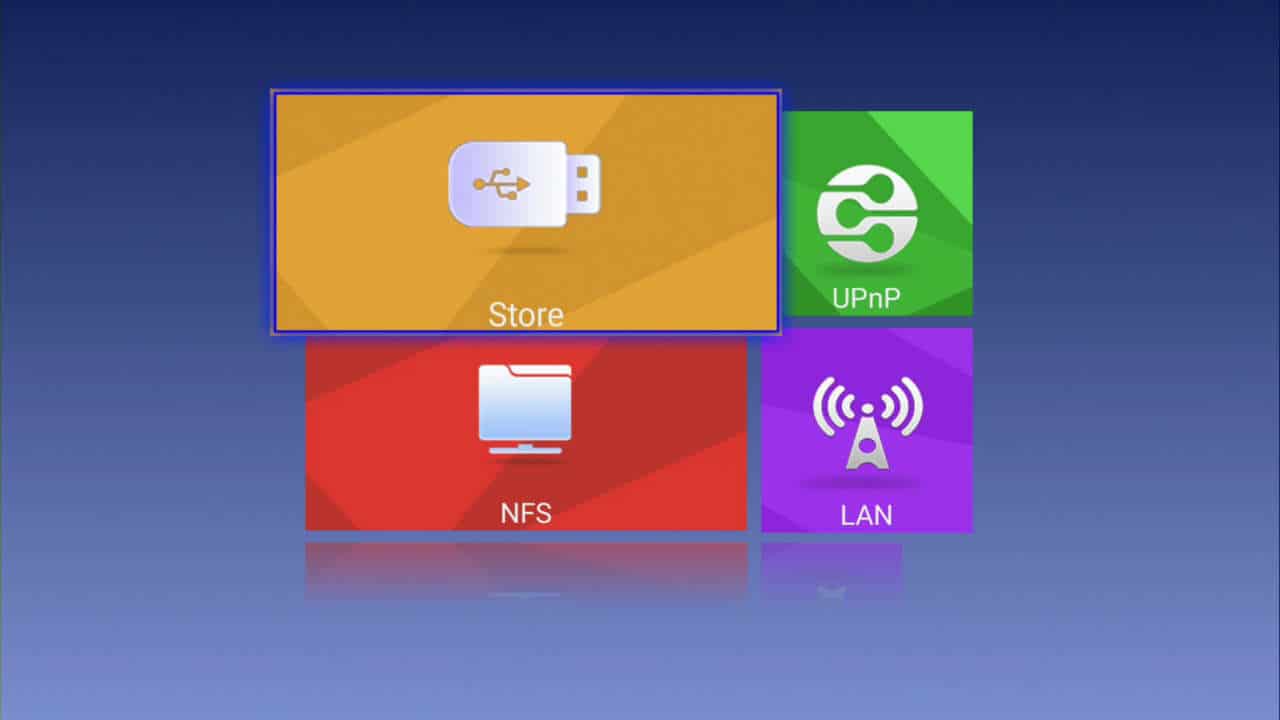
- Locate the .apk file;
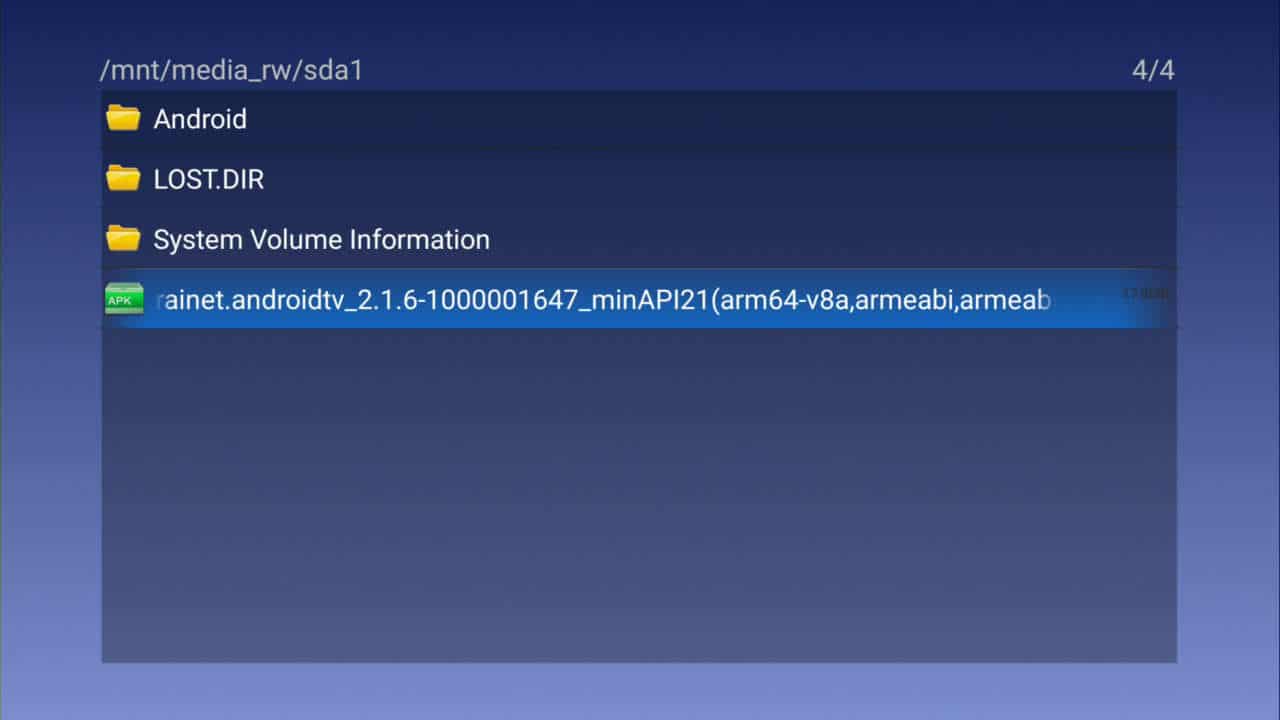
- Select the .apk file to proceed with the installation;
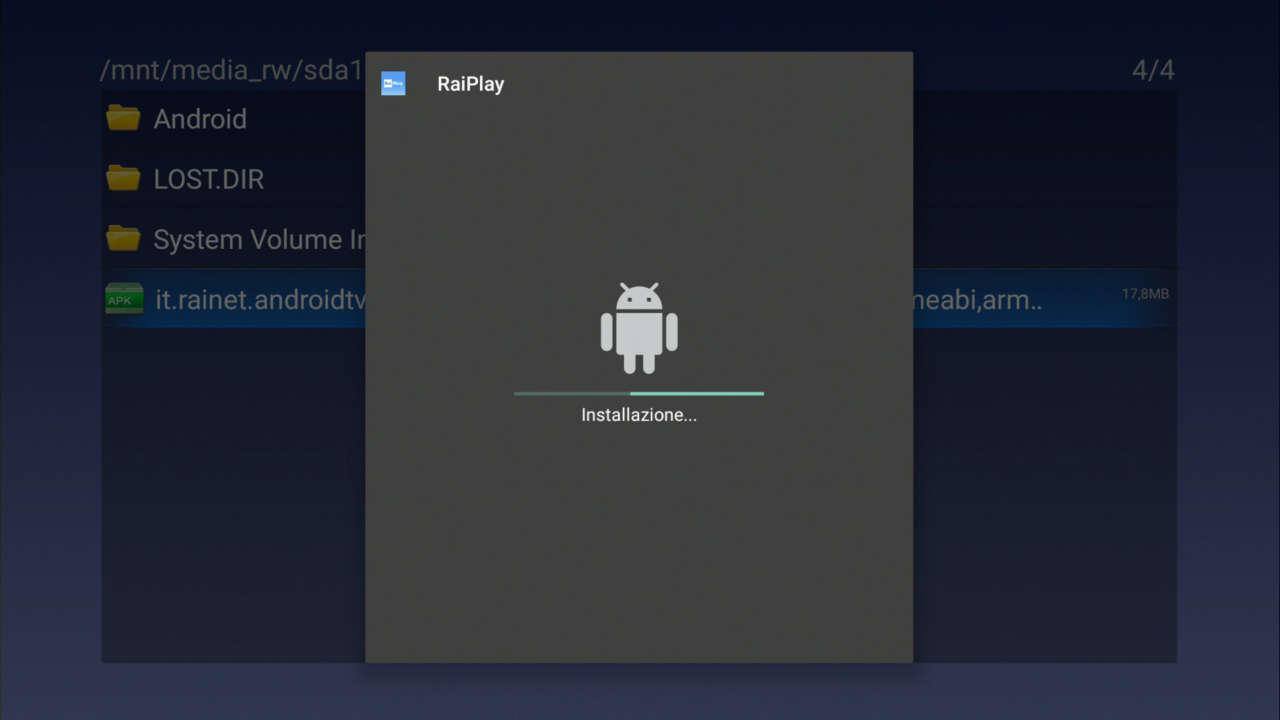
- If the installed version does not work correctly, try other versions (point 3).
The download was performed on the device, follow the “Aptoide App” procedure from step 3.
- Take a USB stick or micro-SD card, format it to FAT32 or NTFS, and copy the newly downloaded .apk file inside;
- Connect the USB stick or micro-SD to the Android box or smart TV;
- Launch an app that allows you to browse your device’s memory (e.g., Archive, File Explorer, File Manager, ES File Manager, etc.) and select the USB or micro-SD drive;
- Locate the .apk file;
- Select the .apk file to proceed with the installation;
- If the installed version does not work correctly, try other versions (
Tag : aptoide on pc
Smartphone Use the Aptoide App